Dolby Digital, Dolby Digital Plus, Dolby Atmos, DTS-X
PROCESSOR
Tegra X1+, 256-core NVIDIA GPU
RAM
2GB
STORAGE
8GB
NETWORK CAPABILITIES
802.11ac dual-band Wi-Fi, Bluetooth 5.0, Gigabit Ethernet
PORTS
HDMI 2.0b, Micro-USB
INTERFACE
Android TV
PLAYABLE MEDIA FORMATS
H.265, H.264, VP9, MPEG-4, AAC, MP3, FLAC, WAV, ALAC, APE
FEATURED STREAMING SERVICES
Netflix, Amazon Video, Hulu, YouTube, HBO Max, Disney+, Apple TV, GeForce NOW
Frequently Asked Questions
How do I replace the remote for my Nvidia Shield TV?
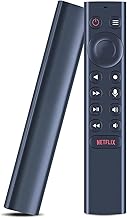
To replace the remote for your Nvidia Shield TV streaming device, you can purchase either an original replacement remote or a compatible universal remote. Many universal remotes are designed to work with Nvidia devices after proper programming.
How do I pair a new remote with my Nvidia Shield TV?
To pair a new remote with your Nvidia Shield TV streaming device:
Make sure your streaming device is powered on and connected to your TV
Press and hold the pairing button on your new remote (usually located in the battery compartment or on the back)
Wait for the LED light on the remote to start flashing
When the remote is successfully paired, you'll see a confirmation message on your screen
Follow any additional on-screen instructions to complete the setup
Note: The exact pairing process may vary depending on your specific model and remote type.
My Nvidia remote isn't working. What should I do?
If your Nvidia streaming device remote isn't working, try these troubleshooting steps:
Replace the batteries with fresh ones
Re-pair the remote with your streaming device
Check for obstructions between the remote and the device
Restart your streaming device by unplugging it for 30 seconds
Check for system updates for your device
If these steps don't work, you may need a replacement remote
Couldn't find what you wanted?
Let us help you find exactly what you're looking for: